

Fix - Windows 10 Start Menu Not Working or Won’t Open At All
5 solutions : How to fix windows 10 start menu not working?
Many Windows 10 users who have recently upgraded their operating systems have reported that their Windows 10 start menu is not working.
There are many reasons why your start menu has stopped working all of a sudden. If your Windows 10 start menu won’t open or start button is not working, here are some easy fixes you can try.
Note: Create a system restore point before you proceed with the following troubleshooting tips. It will help you revert back if any unexpected error occurs during or after the process.
Solution 1: Re-Log into your Desktop
If your Windows 10 start menu is not working and you don’t know the exact reason, re-logging is an easy option you can try. Here’s how to do this:
Step 1: Sign Out
Press the [Ctrl] + [Alt] + [Del] keys at the same time and click on Sign Out.
Step 2: Re-Log In
Now, type your password and hit the Enter button to log in. Check if the start menu is working, else you’ll need to try other methods mentioned in this article.
Solution 2: System File Checker
Step 1: Launch Task Manager
Right click on the Taskbar and select Task Manager or press the [Ctrl] + [Alt] + [Del] keys on your keyboard at the same time to open the Task Manager.
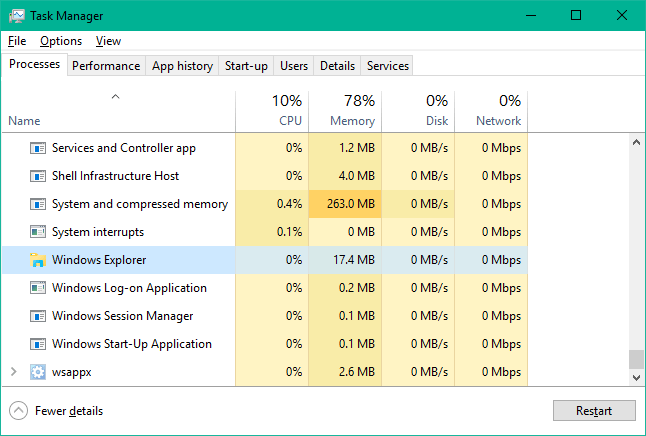
Step 2:
Run a New Windows Task
Now click on More Details and select the option Run New Task. A Run New Task dialog box will open.
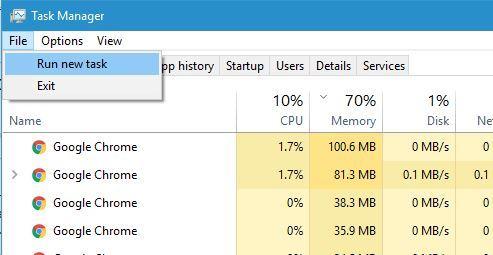
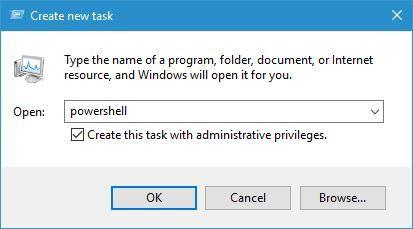
Step 3: Run Windows PowerShell
Now type following command in the dialog box and check the box for Create This Task With Administrative Privileges and hit the OK button.
Powershell
Step 4: Run the System File Checker
Type the following command into the window to System File Checker.
sfc /scannow
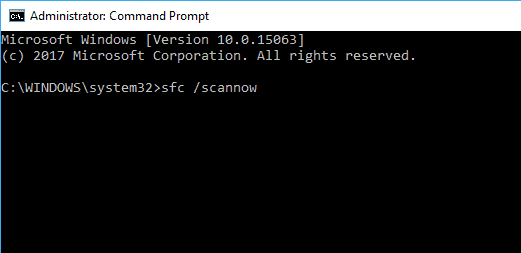
Restart your PC once the scan is completed and check if the issue is fixed.
Solution 3: Repair Windows Image
Step 1:
Open Command Prompt Window
Press [Ctrl] + [Alt] + [Del] buttons to open the Task Manager. Click on the File menu and select Run New Task.
Type cmd to open the command prompt window. Check the option Create this task with administrative privileges and press the Enter button.
Step 2 : Repair Windows 10
Now, copy and paste the following command:
Dism /Online /Cleanup-Image /RestoreHealth
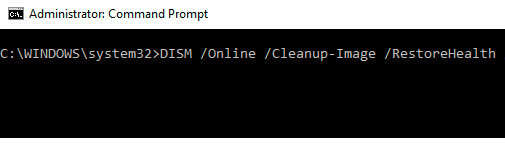
Restart once the scan is complete and check if the start menu is working. If your windows 10 start menu is still not working, try the next method.
Download and run Microsoft’s Windows 10 Start Menu Troubleshooter from here .
Microsoft has released this tool for the users experiencing “windows 10 start button not working” issue lately. This tool will check if the Start Menu and Cortana services are installed properly on your system. It will also check if there are any corruptions in the Windows 10 installation.
Method 5: Create a New User
Creating a new user would help if start menu won’t open. To do this, open the PowerShell window. (Run the PowerShell command as mentioned in the Method 2)
Copy and Paste the following code in the PowerShell window:
net user username /add
Replace the “username” in above command with your new username. Once you see “The command completed successfully” message, you can log into the new account and see if your Windows 10 start menu or button is working.
Similar articles
You shouldn’t settle for just the pre-installed applications and programs. Microsoft offers the Windows Store application that lets you install several apps from a wide range.
In Windows 10, everything revolves around the taskbar and start menu. So, when you have a Windows 10 blank taskbar, you don’t really know where to begin. Here's how to get back the taskbar icons in Windows 10.
Are you excited to try changing the look and feel of Windows 10? Then, Windows 10 themes and Windows 10 skins are the answer for you. In this post, we'll be discussing about the best Windows themes and how to install them.
Although updating the Windows 10 looks a pretty simple task, most of the users find it very difficult when the Windows update hangs up on the “Checking for Updates” screen. Here are three steps to fix the Windows 10 update stuck error.
What to do when your Windows 10 computer won't boot? There are many reasons why your Windows 10 PC doesn't start as usual. Here we'll discuss the best possible solutions to get your Windows 10 boot as usual.
If you are an avid Microsoft Windows 7 user, then chances are that you're facing issues updating your PC. If you're facing issues while updating your Windows 7 PC, here's how to fix.