

FIXED: YouTube Freezes on Chrome and Edge in Windows 10
Chrome crashes when you play YouTube videos? Well, you can fix your browsers – Google Chrome and Microsoft Edge – by trying out the following four simple methods.
These simple methods can fix the “YouTube freezes on Google Chrome” and “YouTube freezes on Microsoft Edge” issues for Windows 10 users.
1. Get Rid of Unwanted Extensions & Plug-ins
There are several reasons why Microsoft Edge or Google Chrome keeps freezing when YouTube videos are played.
Unwanted plug-ins and extensions on Chrome and Edge are among the main reasons causing this issue.
To disable such extensions on Microsoft Edge:
- Open the Microsoft Edge browser on Windows 10
- Click on the three dots at the right-side top corner of the window
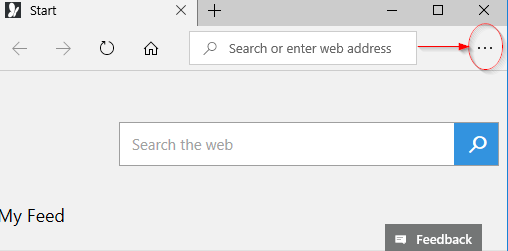
- A drop-down menu opens
- Click on the Extensions option
- Look for suspicious and unwanted plug-ins
- Click on them to disable them by turning them ‘ Off ’
In Google Chrome, you can disable extensions as follows:
- Open the Google Chrome browser on Windows 10
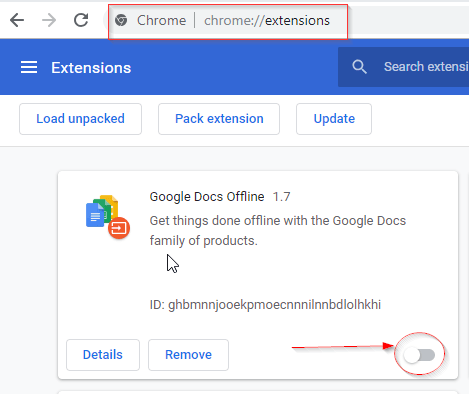
- Type – chrome://extensions/ - in the address bar
- Press the Enter key
- A new page opens up
- Locate the unwanted extensions
- Click on them to turn them off
Now that you’ve disabled the extensions, see if YouTube still freezes on Edge or Chrome.
2. Turn Hardware Acceleration Off
When you disable hardware acceleration of any browser, you can surf several websites smoothly.
Many Windows 10 users have fixed the ‘YouTube freezes on Google Chrome’ problem with this solution.
- Open the Google Chrome browser on your Windows 10 computer
- At the right-side top corner, you’ll find three dots
- Click on them to open the drop-down menu
- Click on the Settings option (at the bottom of the menu)
- A new page gets loaded on the browser
- Scroll to the bottom of this page
- Click on the option – Show advanced settings
- Scroll further to the bottom of the page
- Uncheck or toggle off the box that says “ User hardware acceleration when available ”
Now, you have disabled Google Chrome’s hardware acceleration. Log in to the YouTube website and see if Chrome freezes when YouTube videos are played.
3. Update Graphics Drivers
Microsoft Edge, Google Chrome and several other web browsers start freezing when your computer drivers aren’t updated.
When a YouTube video freezes but audio continues, Chrome is telling you that you need to update your drivers.
- Click on Start menu
- Type ‘ Run ’ in the search box
- Select the program ‘Run’ to open a dialog box
- Type the following in the dialog box
devmgmt.msc
- Click on OK
- This opens the Device Manager window
- Check all the drivers by right-clicking on them
- Select the Update Driver option from the drop-down menus
- Select “ Search automatically for updates ”
- Windows 10 will install the driver updates for you
Once you complete this process for every driver, particularly the graphics driver, in that list, restart your computer to put the change into effect.
4. (UPDATE) Increase Disk Cache Size
If YouTube on your Google Chrome keeps freezing even after trying out the above mentioned steps, the solution given below might help you. In this method, you have to increase the default number of disk cache size in Chrome. The default disk cache size is set to 300MB which you can change up to 8GB.
Let’s see how to increase the disk cache size in Google Chrome to fix YouTube freezing issue.
- Add a Google Chrome shortcut icon on your desktop - ignore this step if it’s already on the desktop
- Right-click on the Google Chrome desktop icon and select Properties
- Go to Shortcut tab
- Now, in the Target field, add the following code at the end of the link
--disk-cache-size=1073741824
So the Target field will look like:
“C:\Program Files (x86)\Google\Chrome\Application\chrome.exe” -disk-cache-size=1073741824
Now click on Apply and Ok, and you’re done. You’ve successfully changed the cache disk size to 1GB. You can change the number in the 4th step to increase or decrease the size accordingly.
Note: If you heavily use Chrome for browsing, keep clearing your Chrome’s browsing data every couple of days in order to make sure Chrome doesn’t run out of the disk cache size.
FIXED: YouTube Freezes on Chrome and Edge in Windows 10. [Video]
Let us know if this guide helped in the comment section below.
Read Next:
- How to Automatically Play YouTube Videos on Repeat?
- YouTube TV: All You Need to Know About the New TV Streaming Service
- Videos Not Playing In Google Chrome [Full Fix]
Similar articles
In this post, we've compiled a list of free WinZip alternatives you can try in 2026.These ten file compression and extraction tools replace WinZip on your phone and your PC.
We have listed ten best ways to use Microsoft Office without having to pay for any heavy subscription chargers.
There are a bunch of websites that actually let you watch your favorite TV episodes for free and legally. Here's the list of 15 legit sites you can access for watching tv shows online for free.
A mouse lag in Windows 10 weighs down your pace while using the computer for common purposes. So, to fix this, you need to know exactly why your mouse is unable to work properly.
In this post, we’ve discussed 12 free legal online chatting website to chat with strangers.
The most official communication that is preferred in the digital age is Mail. After postcards, we have turned up to emails.Let me brief you with my review so that you can turn up to such alternative mail services instead of getting a flooded inbox with numerous unimportant emails.