

10 Best NES Emulators for Windows 10
NES is the Nintendo Entertainment System and is the best entertainment system from the 90s. However, with the growing technology, the games are very superior with the best features and serves as a great way to pass your time.
To play and experience these NES games, thankfully we have NES Emulators to play our all-time favorite games right on your system. Some of the emulators are so advanced that they are designed almost to replicate the factors of our old games.
There are a lot of NES emulators present in the market but we have shortlisted top 10 Nintendo Entertainment System Emulators and briefly mentioned their features below:
1. VIRTUANES
In 2007 VirtuaNES Emulator lost support from its creators but it still works fine for many of its PC users. It works without any issues on Windows with its fast and reliable performance and highly customizable features. Let us know a few of the Features
- Customize screen with full-screen mode
- TV mode support
- Support for gamepad and joystick
- Edit memory hex locations
- Only available on Windows
2. NESTOPIA UE
Nestopia was a very advanced feature but lost support. The same developers don’t support an Extended version of Nestopia named Nestopia UE (undead edition). Nestopia UE continues to be the feature-rich NES emulator. Nestopia UE serves a lot of features such as:
- Support for the external devices
- Resizable screen
- Customization options
- Recording
- Multiplayer capabilities
- Cheat code support
- Vsync capability
- Auto-saving capabilities
Visit Nestopia UE emulator here
3. FCEUX
FCEUX is always on the top when it comes to NES Emulator. FCEUX Emulator is popular as it is effortless to use and is good enough to deliver the results. Here are some of the FCEUX features:
- Hex editor
- ROM hacking
- Map making
- Lua scripting
- Customizable resolution
- Gamepad support
- Full-screen view
- Debugging mode
- Third party plugins and modifications
- Windows
- Mac
- Linux
4. JNES
The JNES is the best NES Emulator for Windows 10 if you are using it to play games. JNES does not have many advanced features but comes with a ready-to-play condition. This Emulator is the easiest and simplest NES Emulator.
It doesn’t come with a lot of features, but here are a few basic elements:
- Memory mapping
- Control on the screen size
- Game Genie cheats
- Instant saves
- Recording
- Sound control
5. NINTENDULATOR
Nintendulator is an open source Win32 NES emulator written in C++.
The original goal was to emulate the NES down to its hardware quirks; though it’s fallen behind over the years, recent builds have caught up once again and can emulate certain behaviors most other emulators neglect to handle. However, this emulation precision comes at a price - a 1500MHz (estimated) or faster CPU is required to emulate at full speed.
6. NESBOX
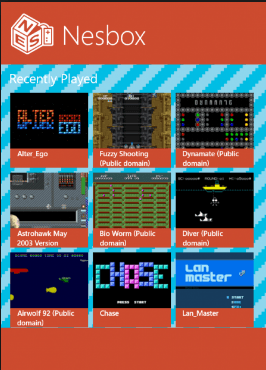
Nesbox is a new generation NES emulator. You can play games on the official website and also download the program on your system. This emulator is very easy to set up and play the games with original sound quality and graphics.
7. RETROARCH
When it comes to the list of the best emulators, Retroarch is the most famous emulators at present. It’s a bit difficult to setup RetroArch in your PC, but It gives a fantastic feature to its users like:
- Best graphic experience avoiding any lagging
- Available on Windows, Mac, Linux
8. Dolphin
Dolphin is a Wii emulator and can emulate a console of the PS3/ Xbox and boasts a high compatibility ranking which also indicates that you are most able to run your favorite games on dolphin emulator. Some of the features are listed below:
- Allows you to run your games on an HD full screen
Ready to tap in Nintendo Wi-Fi link
- Continuous updates and improvements
- Available on Windows, Linux, Mac OS X
9. MSEN Emulator
This Emulator supports all games in the original console. It automatically saves the last stage you’ve played and loaded the next directly. The accuracy of MSEN emulator makes the gaming experience more enjoyable on your device. The additional features of MSEN are:
- Video upscale
- Inbuilt cheat finder
- Available on Windows and Linux
10. RockNES
Rocknes is an emulator that comes with high stability and game support. It supports all the games that are present on the console. RockNES has the Eagle Mode which enhances the graphics and sound
- Great game support
- Eagle mode
- Available on Windows
The above list of Emulators has the most useful and popular NES Emulators at present. These emulators deliver high performance and each one they have its benefits and disadvantages.
Let us know which of the above NES emulator offers the best gaming experience for you.
Read Next:
- 10 Alternatives to Kodi (2018) – Best Media Players for Your PC and Mobile Devices
- 10 Best Driver Updater for Windows (Fresh List September 2018)
Similar articles
The new month comes up with improved Steam usage statistics. The operating systems Linux and macOS, increased their ration this month.
Twitch allows you share your PS4 gameplay with a largest community of gamers. But, how do you stream to Twitch from your PS4? Let’s see.
PUBG Failed to initialize STEAM error usually pops up when the game is not installed properly. Here's how to fix this PUBG initialization error.
The PlayStation 4 controller is a DualShock 4 controller. These PS4 controllers are very well made having an excellent D-pad. In this post, we’ll guide on resetting your PlayStation DualShock 4 Controller.
Steam has a long history of issues, and you are not alone if you are experiencing issues like Steam download is stopping randomly.The download process halts randomly, where one or more games in the steam download get stuck resulting in the “Download Queued” status.
There are several reasons why Steam app may not open on your PC. You need not worry, though. There are over six different ways to fix Steam app if it is not opening on your computer.