

How To Remove and Add Right-Click Menu Items from Files and Folders?
Removing Items
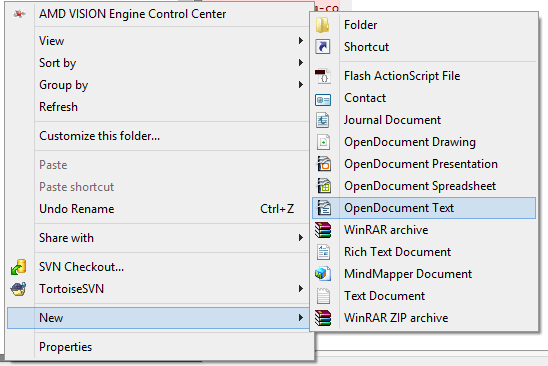
A lot of programs you install will add themselves to the right-click menu of your files and/or folders. And most times, you have no choice in the matter and, as a result, your right-click menu can get very long with added items you don't even use. The last person I was helping with this had a right context menu so long that the Rename option was no longer visible!
Fortunately, you can easily remove those unwanted menu items, if you
know the registry values to edit. And it's not at all difficult once you
know the keys responsible for the additions.
For Files, the secret lies in the "context menu handlers" under the
shellex subkey for "All Files" which, in the registry, is nothing but an
asterisk - like a dos wildcard, which means the values entered apply to
all files. It is at the very top of the Root key, right here:
HKEY_CLASSES_ROOT\*\shellex\ContextMenuHandlers
Click the the + sign next to the ContextMenuHandlers key, to expand it.
Now you will see some of the programs that have added items to your
right-click menu. Simply delete the program keys you don't want.
Yup! It's that simple. If deleting makes you uneasy, just export the key
before deleting it. Or, instead of deleting the values, disable them.
Simply double click the default value for the program on the right hand
pane and rename the clsid value by placing a period or dash in front of
it.
ie; - {b5eedee0-c06e-11cf-8c56-444553540000}
Then exit the registry, refresh, and right click a file to see if the
item was removed from the menu.
Some programs - like WinZip or WinRar - will add several items to your
right click menu but all of them will be removed by deleting or disabling
their one context menu handler.
Note that the above key only applies to the right click menu of files.
To remove entries from the right click context menu of folders, you need
to navigate to the Folder and Drive keys:
HKEY_CLASSES_ROOT\Folder\shellex\ContextMenuHandlers
HKEY_CLASSES_ROOT\Drive\shellex\ContextMenuHandlers
All you have to do is follow the same procedure as for Files - either
disable or delete items you wish to remove.
Adding Items
Adding Items to the right click menu of Files and Folders is also
fairly simple using the Registry. It just involves the creation of a few
new keys for each item you wish to add. You edit the same keys used for
removing items. Let's use Notepad as an example of an item you'd like to
add to the right click menu of all your files or folders.
For folders, go to this key:
HKEY_CLASSES_ROOT\Folder
Click the + sign next to Folder and expand it so that the Shell key is
visible. Right click the Shell key and choose New>Key and name the key
Notepad or whatever else you'd prefer (whatever the key is named is what
will appear in the right-click menu). Now right click the new key
you made and create another key named Command. Then, in the right hand
pane, double click "Default" and enter Notepad.exe as the value.
Exit the registry, refresh, and right click any folder. Notepad should now
be on the context menu.
For files, go here again:
HKEY_CLASSES_ROOT\*
Expand the * key and see if a Shell key exists. If it does exist, follow the same procedure as for folders. If it does not exist, you'll have to create a new Shell first. Just right click the * key and choose New>Key and name it Shell. Then right click the Shell key and continue on the same way you did for adding items to the right click menu of folders.
Once done, Notepad should appear as an option in the right click menu of all your files.
Similar articles
If you have installed the latest version of 7-Zip (File Compression Tool) on your Windows10 machine, you might have observed the entry named CRC-SHA into the context menu.
You may often find issues with your Windows 10 PC after installing the latest updates. You can either remove or reinstall Windows 10 updates to fix these problems. Here's how to rollback your Windows 10 to the pre-update version.
Annoyed by Balloon Popups in Windows XP?
How to repeat YouTube videos? How to play YouTube video on repeat mode? This is a most common question asked by the YouTube users. Let's see how to do it.
The key advantage of restoring Windows Firewall settings to default is preventing the computer from hackers and malicious software. Here are the 3 easy steps to restore your Windows 10 firewall settings.
When Windows Host Process runDLL32 causes high CPU and disk usage, your Windows 10 faces system failures, errors and other issues. Here's how resolve this issue.