

Where is WindowsApps Folder in Windows 10? How to Access It?
WindowsApps folder remains hidden for all users of Windows 10 systems. The elusive folder is meant to stay off user limits because of its critical functions.
You can try finding the folder yourself, but no search results can reveal the location of WindowsApps folder in Windows 10.
Firstly, why do you need to access the WindowsApps folder? Well, that’s where the Windows Store Apps are installed in Windows 10.
So, if you want to modify the Windows Store Apps, you need access to the WindowsApps folder in Windows 10. And, this is how you do it.
How to Access WindowsApps Folder in Windows 10 – The Fastest Way
The easiest way to access WindowsApps folder in Windows 10 is downloading the ‘Take Ownership’ context menu option.
By using this option, you can skip the lengthy process of accessing WindowsApps folder manually.
Download the ‘Take Ownership’ registry hack from the below link:
www.dropbox.com/s/j8yk084d4bf1ixy/TakeOwnership.zip?dl=0
- Install the ZIP file
- Extract it and go to the folder that contains a file named “InstallTakeOwnership.reg”
- Double-click on it and click OK after the registry gets successfully installed
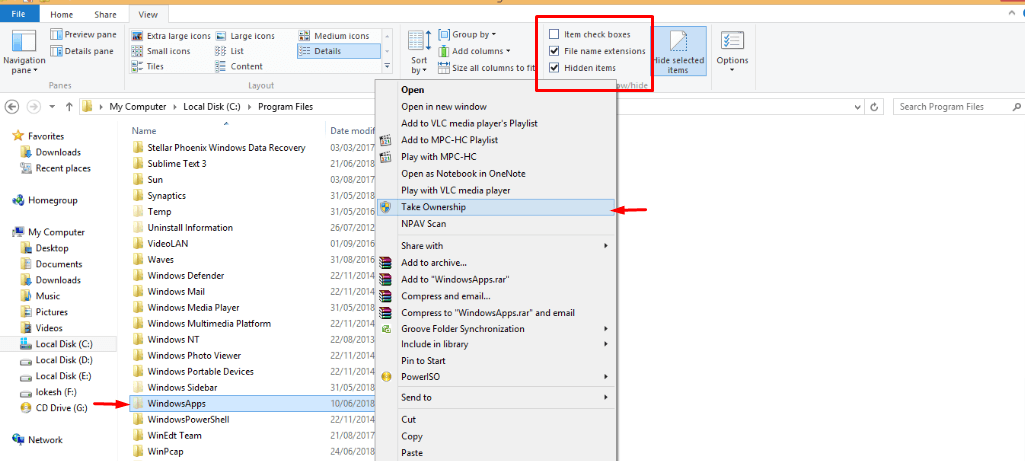
- Go to Program Files folder in Local Disk (C:) window
- Click on the ‘ View ’ tab and tick the checkbox for ‘ Hidden Items ’
- The WindowsApps folder is now displayed
- Right-click on it and select “ Take Ownership ” option from the drop-down menu
The registry will run a command that gives you full control of the folder. Once this process is done, you can access the WindowsApps folder in Windows 10 at all times.
Steps to Manually Access WindowsApps Folder in Windows 10
You have the option of whether or not to use a ‘Take Ownership’ command for accessing the WindowsApps folder.
If you want to access WindowsApps folder manually, follow these steps on your Windows 10 computer.
To find the WindowsApp folder that’s hidden,
- Open a File Explorer window on Windows 10
- Go the system memory where you save the program files
- Most probably, it is Local Disk (C:)
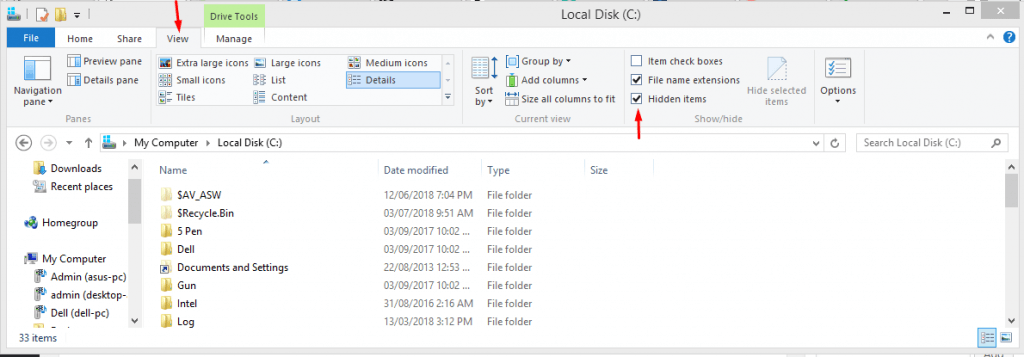
- Go to Program Files folder in Local Disk (C:) window
- Click on the ‘ View ’ tab and tick the checkbox for ‘ Hidden Items ’
You’ll see the WindowsApps folder as a result of this action. However, you still won’t be able to get access to the WindowsApps folder in Windows 10.
To get access to WindowsApps folder manually,
- Follow the above steps to find the WindowsApps folder
- Right-click on the folder to open the drop-down menu
- Select “ Properties ” from the menu
- You have opened the WindowsApps Properties window
- Go to the ‘ Security ’ tab
- Click on the ‘Advanced’ button to open the window for “ Advanced Security Settings for WindowsApps ”
- In the window, you’ll see the link to Change settings
- Click on the link (right next to the Owner name)
- A prompt for User Access Control opens up
- Click on Yes to continue
- Under the Permissions tab, double-click on the “ TrustedInstaller ” program
- Now, select your computer user ID from the list by clicking on Check Names option
- Click on OK after selecting the user
- When you go back to the Advanced Security Settings window, you need to tick the checkbox for – Replace owner on subcontainers and objects
- Click on the OK button, and then on the Apply button to save changes
You’ll see a message that says ‘Changing Ownership of…”. This way, you have successfully gained access to the WindowsApps folder in Windows 10.
Similar articles
Adding bots to Discord server can bring more fun in playing multi-player video games. That’s why the gamer in you is searching for a way to add these pre-programmed and autonomous users.
There’s a Startup folder in Windows 10 that lets you run any app or file when your computer starts. So, if you don’t know where this folder is, or how to add programs into it – we’ve sorted it out below.
NTUSER.DAT is an important Windows system file that stores information about the user profiles. If you're wondering what's the NTUSER.DAT file on your computer, read this article.
This guide details some easy ways to fix application has been blocked from accessing graphics hardware error in Windows 10.
Your PC autometically shuts down when there's an overload on the CPU. This may lead to data loss, which can be extremely annoying. Let's see how to set the auto shutdown in your Windows 10 PC.
Avast CPU Usage High: How to Fix? Avast CPU Usage High is caused by incorrectly configured system settings or irregular entries in Windows registry. Avast CPU Usage High: What Does it Mean, What Causes Avast CPU Usage High, How to fix high CPU Usage,How To Fix System ntoskrnl.exe Process High CPU/RAM uses in Windows 10