

Easy Methods to Install & Update Adobe Flash Player for Mac
Adobe Flash Player has been excellent free software plug-in for web browsers to view multimedia files, rich internet programs and stream videos on your Mac. Adobe Flash for Mac is a lightweight, yet a useful product that offers powerful user experience.
Many users are getting a message asking you to update Adobe Flash Player. However, we don’t suggest you click the Update button as you might install malware or adware instead.
In this post, we’ll guide on you on how to install and update Adobe Flash Player for Mac.
What is Flash Player?
As discussed above, Flash Player has been one of the essential plug-ins in popular browsers. It allows you to watch videos, interactive animations, and such other web media content.
Google Chrome and Firefox have an in-built flash player in the sandboxed mode. However, Safari has disabled Flash Player and runs on HTML5 which has the same support and services as Flash Player.
However, the fact is that you may still require Adobe Flash Player on your Mac device as some of the websites won’t work without it.
For example- Some of the Live steams like BT sport won’t work without Flash Player. Similarly, many games and educational sites need the Flash Player.
How to Download and Install Adobe Flash Player For Mac?
Now that you know that Adobe Flash Player is an essential part for Mac devices and Safari as well. Let’s download it by following the steps mentioned below.
- Launch Safari or your web browser
- Visit the official download page- https://get.adobe.com/flahplayer/ot9herversions
- Now, choose your operating system (Mac OS X 10.6 – 10.13) from the drop-down list (to the left-hand side)
-
In the second drop-down menu, choose from the two following options-
- Download Adobe Flash Player for Mac Chrome and Opera
- Download Adobe Flash Player for Safari and Firefox
- After that, hit the Download now button (to the right side of the page)
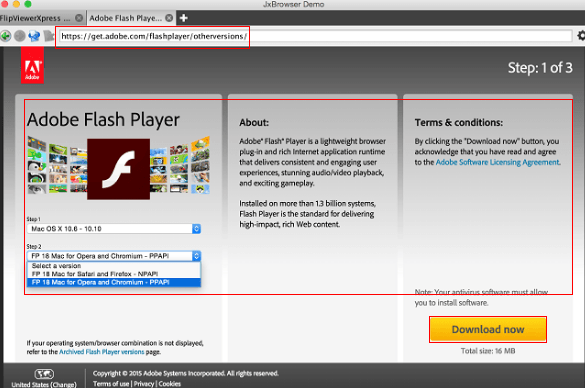
- The installer will be downloaded to your computer to install the downloaded software
Great! You have now successfully downloaded and installed Adobe Flash Player on your Mac device.
How to Install Adobe Flash Player on Mac?
You need to install the downloaded Adobe Flash Player on Mac to use it. Here’s how-
- The installer is downloaded in the downloads folder, or it’ll ask for the location to save the file
- Open your Downloads folder and check for . dmg installer file
- Now, double-click on the Install Adobe Flash Player file. Read the text carefully and see if it’s the same file you downloaded
- Hit the Open icon and check the Agree to terms and conditions box
- Tap on the Install button
- You’ll see a window asking you to type username and password
- Click on the Install Helper icon
- Here, click “ Allow Adobe to install update .”
- Hit the Done button
Now, reboot your web browser once Flash is installed. Adobe Flash Player is now successfully installed on your Mac device.
How to Update Adobe Flash Player for Mac?
Adobe developers try to enhance their software and hence, release Flash updates regularly. However, some security attackers ask you to update Flash Player with some pop-ups. It can be a trick for you to download adware and malware through these pop-ups.
Follow the steps mentioned below to update Adobe Flash Player on Mac
- Go to the Apple menu (the little apple symbol to the left side of the menu bar) and select System Preferences
- Choose Flash Player (to the bottom left corner)
- Go to the Updates tab and hit the Check now button
- If there is an update available, Click on Yes icon to update
If it shows that there are no updates available, you probably have the latest version of your Flash Player for Mac installed already.
How to Uninstall Adobe Flash Player from Mac?
Many users are reporting that Adobe Flash Player has some security issues and you surely want to keep the security of your iPhones and Mac devices.
Want to uninstall Adobe Flash Player from Your Mac Completely? Let’s do it-
- Adobe has created an uninstaller for Mac devices. Visit the following link to download it-
https://helpx.adobe.com/in/flash-player/kb/uninstall-flash-player-mac-os.html
- Once it’s downloaded, launch it on your Mac device
- Hit the Uninstall button
- Ensure that no web browser is working on your device as the uninstaller won’t work
- You’ll see a notification “ uninstallation succeeded”, hit the Done button
- Here, delete the following directories-
<home directory>/Library/Preferences/Macromedia/Flash\ Player
<home directory>/Library/Caches/Adobe/Flash\ Player
- Now, reboot your PC
- Visit the following link to check if Adobe is installed or uninstalled on your Mac device –
https://helpx.adobe.com/in/flash-player.htmlac
Done! The link mentioned above also contains some links to Flash tutorials form Adobe. Don’t allow the tricky pop-ups and sites lead you to download malicious programs.
Have any other issues with your Adobe Flash Player on Mac? Drop down your queries in the comments section below.
See Also:
- 3 Simple Ways to Fix “Battery Service” Warnings on Mac/Macbook Pro
- Adding a Printer on Mac (Automatic and Manual Process)
- Five Easy Ways to Remove Virus from Your Mac Device
Similar articles
The ‘Service Battery’ warning on your Mac can be an unexpected buzz-kill for you. It is a critical concern, nevertheless, solvable.Now, let’s look at the three ways that can fix the service battery warnings on Mac.
A download manager is a computer program dedicated to the task of downloading possibly unrelated stand-alone files from the Internet for storage. People generally lose their already completed work when they try to recover from errors it is a very serious issue. Well to their rescue is the download manager.
Textmate 2.0 , the alpha version of mac text editor now has been open sourced. As noted by ArsTechnica, developer Allan Odgaard made the decision based in part on what he calls Apple's steps to limit our freedom.
One of the biggest problems that people have when they come to Mac from other platforms, i.e either Linux or Windows, is to know what are the best programs to start by using this.
In this post, we will be discussing how to add a printer on your Mac with either manual installation process or auto-installation.
Searching for the best iPad gifts for your loved one or yourself? Your iPad is an all-rounder device which can shoot videos, play music, send emails, take pictures and perform all the internet functions.