

Migrating Virtual Machines from VMware to VirtualBox and Vice Versa
VMware and VirtualBox are popular virtual machines (VMs) in the world. You can use them in many ways, from running old applications to testing new software and operating systems.
Maintaining a virtual machine, however, is not an easy task. You need to put in huge efforts to create and run the software.
At times, choosing between the two virtual machines becomes a problem. Both, VMware and Virtual Box, have their pros and cons.
Fortunately, you don’t have to settle for just one of these amazing virtual machines. You can convert VMware to VirtualBox and vice versa. First, let’s see how you can migrate from VMware to VirtualBox.
How to Migrate from VMware to VirtualBox
Before you migrate from VMware to VirtualBox, export the VMware in an .ovf file.
To export the VMware in an .ovf file,
- Open a File Explorer window and go to the C: drive on My Computer
- Open the Program Files folder
- Locate the OVFTool folder
- Press the Shift key and right-click on the folder icon
- Click on “ Open Command Prompt here ” option from the dropdown menu
- In the Command Prompt window, type this –
ovftool "c:\path\to\original_vm.vmx" "c:\path\to\export.ovf"
- Press the Enter key to execute this command
Once the transfer is completed, open the VirtualBox software. Go to the File tab , click on it and select Import Appliance from the dropdown menu.
You can also use the shortcut by pressing keys Ctrl and I .
In the Import Alliance window, search the .ovf file you exported earlier. Select the .ovf file and click on the “ Next ” button.
When you see all the VM settings, do change them. Click on the Import button and continue the importing process. After the process is a 100% complete , go to the VM VirtualBox Manager window and select the VirtualBox VM. Click on the ‘ Start ’ button.
You’ve successfully migrated from VMware to VirtualBox.
Now, let’s consider you are already using VirtualBox and you want to migrate from VirtualBox to VMware. Here’s how you do it.
How to Convert VirtualBox to VMware
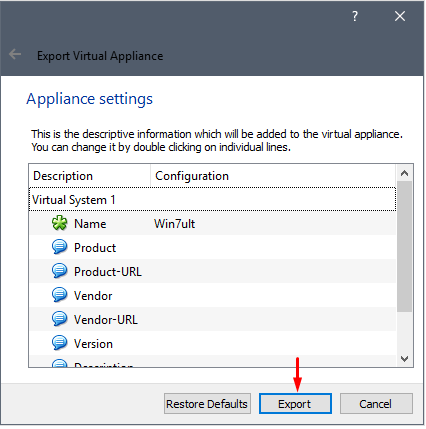
To migrate from VirtualBox to VMware,
- Open the VirtualBox application
- Click on the File tab
- Click “ Export Appliance ” from the menu
- You can also use a shortcut by pressing the Ctrl and E
- Select the VMware you want, and click on ‘ Next ’
- Save the VM file by selecting a destination on your E: drive
- Don’t change the VM settings, keep them as it is
- Tick the checkbox for all the appliance settings
- Click on the ‘ Export ’ button
Once the export process is a 100% complete, you need to open up the WMware Workstation window. Click on the File tab and select the ‘ Open’ option in the dropdown menu.
Select the exported .ova file from the destination you saved it earlier. Click on the “ Import ” button. If you see any prompts, click on “ Retry ”.
Wait for the importing process to complete. Your VM is migrated from VirtualBox to VMware successfully.
Similar articles
In Windows 10, connecting to a Wi-Fi network is not always as simple as keying in the password and clicking on Connect. You may face the no Internet, secured error in Windows 10, which stops you from accessing the internet.
Are you preparing for the collapse of society? If so, the truth is that you are definitely not alone.
Are you experiencing issues while connecting to your Belkin router? Many users have recently reported that they're unable to join the Belkin setup. Here's how to fix the problem.
You need to know exactly what has caused your computer’s IP address to clash with that of another system connected to the same network. Let’s see how to fix Windows has detected an IP address conflict error in easy ways.
If you’re a tweeter and you own an iphone, then you are probably aware that there are several different apps for you to choose from to access your Twitter account. Some carry basic functionalities and others are more complex and connect to a variety of social media from the one app. Some are free, w
Here is a list of money making websites for those who are looking for how to make money online by placing ads, when those ads are clicked by reader then you earn money.