

How do I Fix “NVIDIA Installer Cannot Continue” Error in Windows 10/8/7?
You need a good graphics driver to run high-end games and high-res videos on your computer. You can buy a computer with pre-installed Nvidia driver.
You can also upgrade your existing computer to the nVidia graphics driver. However, you’ll be pissed to face an error while installing the driver.
Despite the authentic purchase, the nVidia installer may not work as expected. So, what do you do when the nVidia installer cannot continue?
Here are some pro tips to fix when the nVidia installer has failed.
1. Install Drivers Manually
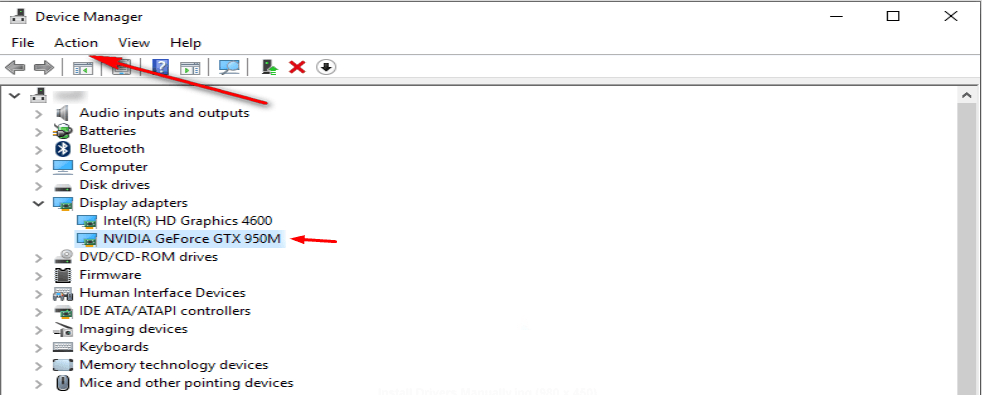
Firstly, forget the setup process. If the nVidia installer’s not working, you can manually install the drivers.
Here’s how you do it.
- Search ‘ device manager ’ on your Start menu to open it
- Open the Device Manager on your Windows 10
- Expand the option for Display Adapters
- Select the nVidia graphics driver
- In the toolbar, you’ll see the Action menu
- Open the Action menu and select Uninstall
- Complete the uninstalling process
- After the wizard is complete, reboot your computer
- Open the Device Manager again
- Right-click on nVidia driver and select – Update Driver Software
- Click on the option – Browse my computer for driver software
- Tick the checkboxes for all subfolders
- Press the Next tab to finish the installation wizard
Once this process is done, reboot your computer. Now, the nVidia driver has been installed manually, so you don’t need to run the setup.
2. Rename nVidia Program Files
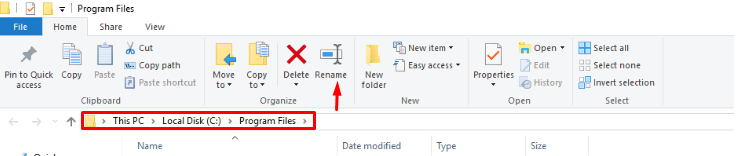
The following method may look strange, but it has worked for quite a few users.
- Click on the “ My Computer ” icon on your desktop
- For Windows 10, click on the “ This PC ” icon on your desktop
- Go to the local disk where you’ve saved your program files [most cases, it is Local Disk (C:) ]
- After you open the Local Disk C window, go to ‘ Program Files ’
- In the Program Files window, scroll down and search for a folder called NVIDIA Corporation
- Right-click on the folder icon and select ‘ Rename ’
- Rename the file as something else (try “Corp-NVIDIA” or any other variation)
- Press the Enter key to save the new name
- Go back and run the nVidia installer setup again
This method solved the problem when nVidia drivers installation failed.
3. Delete everything and Run nVidia Setup Again
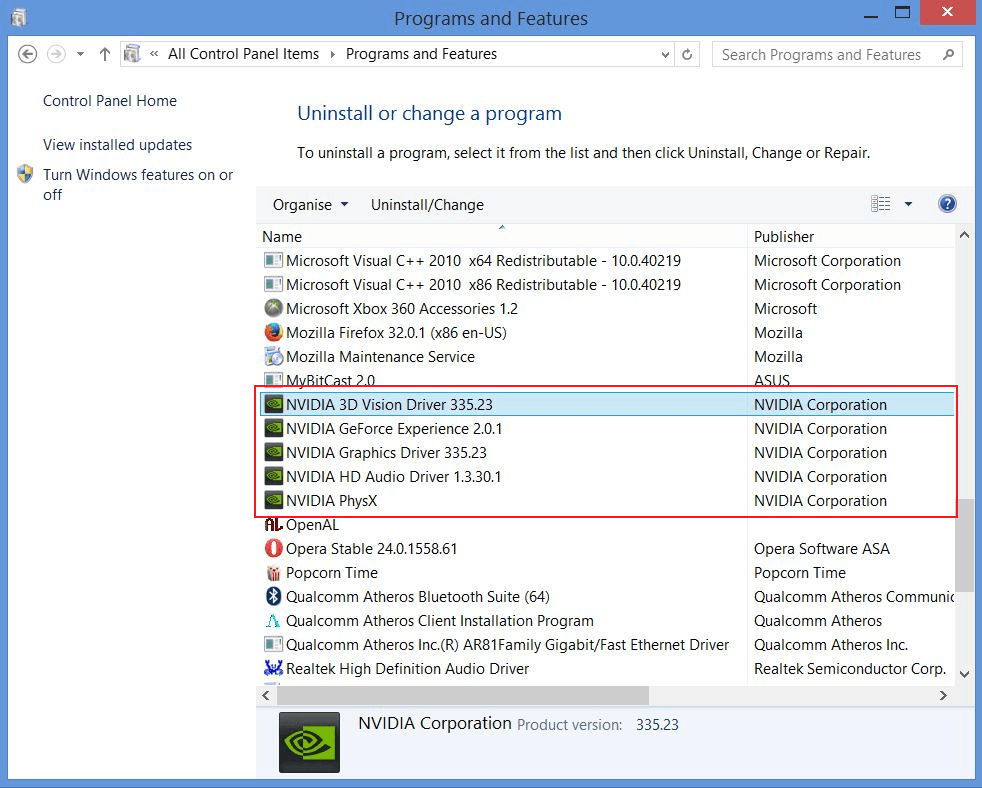
If nVidia installer cannot continue, you need to delete all existing files linked to the graphics software. In most cases where the nVidia installer cannot continue, required files are missing.
To solve this, you must delete everything you have on nVidia. Then, you can run the setup again.
- Go to the ‘ Device Manager’ of your computer from your Windows 10 Settings menu
- Select the nVidia graphics driver and uninstall
- Reboot your computer to ensure all other drivers are running perfectly
- Now, click on the Start menu
- Go to ‘ Programs and Features ’ and click on it to open a new window
- Select the option that says – Add or remove programs
- Search for all nVidia related files and programs and uninstall them
When you’re sure that every nVidia file and folder is deleted, run the nVidia installer setup again.
4. Disable Antivirus Software
Reinstalling nVidia hasn’t solved the problem? Perhaps, your antivirus software is the reason why the nVidia installer cannot continue.
Antivirus software can stop you from installing some programs and software. Even the safest installations are blocked by antivirus software.
Try disabling your antivirus software to see if it solves the problem.
- Go to the antivirus icon on your Windows 10 taskbar
- Right-click on the icon
- Choose the “ Disable ” option from the menu
If there’s no disable option in the menu, try disabling the software from the programs section in your Windows settings menu.
Similar articles
What to do when the Settings does not open in your Windows 10? In this article, we will discuss the best possible ways to access Settings in Windows 10.
Many users have reported that the Windows 10 login screen doesn't show up up on their PC or the login screen suddenly stopped appearing. Here are the fixes you can try if the login prompt doesnt' appear on your Windows 10 PC.
If you've downloaded and install the latest Windows 10 October 2026 update, you might be experiencing issues with your PC. Here's the detailed guide on how to fix problems caused by Windows 10 October update.
How to Fix Windows Key Not Working in Windows 10,,Using PowerShell,Modify your Registry,Disable Gaming Mode, Check for Malware and Viruses,Perform SFC Scan
Here’s how you can fix Windows Update error 80072EE2 in some simple steps.
What to do when your Windows PC couldn't recognize your headphone? Headphones not working is a common problem experienced by Windows 10 users. Let's see how to fix this problem.